If you work with a large music library, you know how messy MP3 files can get. Some tracks have missing artist names, some have incorrect tags, and others are completely blank. When your songs aren’t labeled properly, it becomes harder to search, sort, or prepare playlists — especially if you’re a DJ or a music collector.
Adding or fixing the artist name shouldn’t take hours. And it definitely shouldn’t require editing each file one by one. That’s why tools that automate music metadata updates are becoming essential for anyone who wants a clean and well-organized music library.
In this guide, I will walk you through the easiest ways to add artist to MP3 files on any device, using powerful automatyczne edytory tagów, lightweight manual tools, and basic system tools.
Zacznijmy!
SPIS TREŚCI
Add Artist to MP3 File on Windows
automatycznie MP3 Tag Editor – ID3Genius
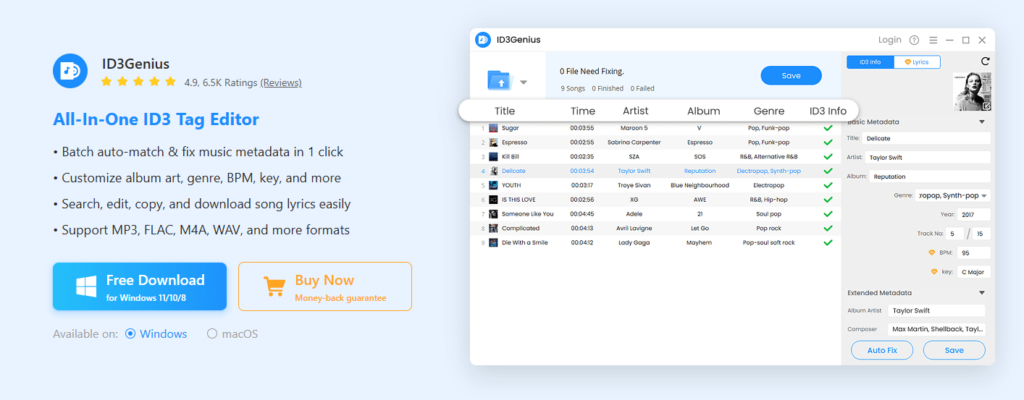
Managing a large music library? ID3Genius edytor tagów muzycznych offers the fastest way to add artist to MP3 file, supporting both precise manual edits and efficient batch updates. Its Auto Fix feature combines audio fingerprinting with online database matching to instantly fill inaccurate artist names, album art, genres, and other key tags. The metadata editor automatycznie fixes a few tracks’ tags or updates hundreds at once, all while maintaining compatibility with major audio formats like MP3, WAV, FLAC, M4A, itp.
In addition to basic tags, ID3Genius tag editor also supports extended metadata and audio-feature analysis using advanced AI technology, helping keep your entire collection organized and ready for any media player. You can even auto-rename files based on updated metadata for a cleaner, smarter library.
Simplify your tagging process and add artist to MP3 file with ease using ID3Genius teraz!
ID3Genius
Automatyczne pobieranie i aktualizowanie metadanych muzycznych
How to add artist name to MP3 filet w ID3Genius edytor tagów:
- Dodaj swój MP3 Utwory: Start by uploading the songs you want to update. Tap "Dodaj pliki" aby wybrać swój MP3 files, or drop individual tracks or an entire folder straight into the edytor tagów muzycznych do natychmiastowego dostępu.
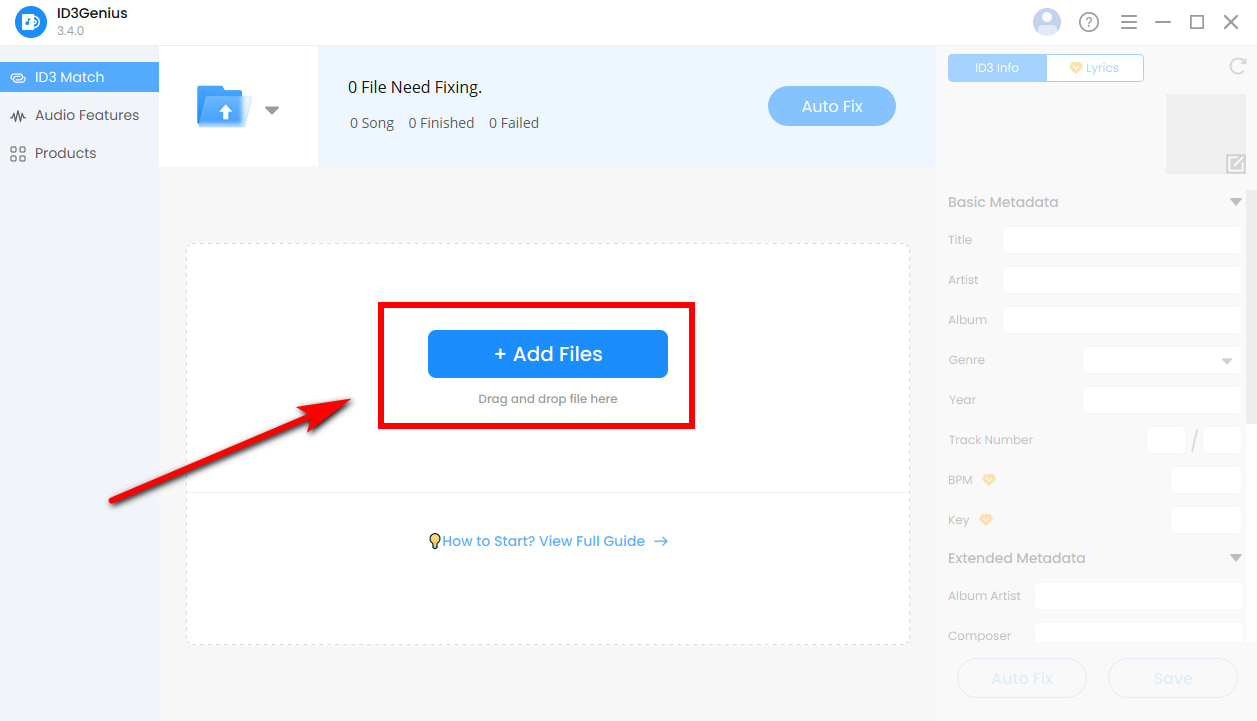
- Auto-Detect Artist Information: Kliknij „Naprawa automatyczna” pozwolić MP3 tag editor scan your files and fetch precise metadata. It automatically pulls the correct artist name, cover art, genre, and other missing tags from trusted online music sources.
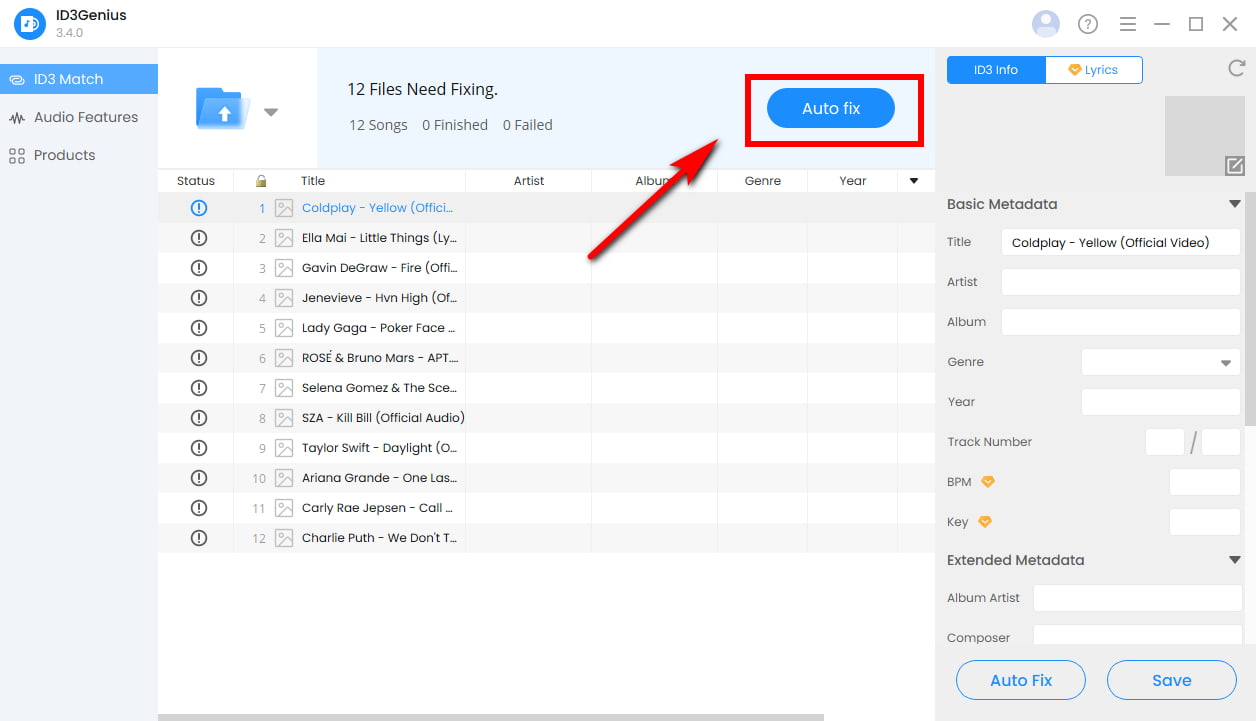
- Refine and Save Tags: Once the metadata is generated or fixed, hit "Zapisać" to add the updated artist info to your MP3 files. Prefer manual adjustments? You can fine-tune any ID3 tag, including artist, title, album, artwork, genre, release year, BPM, or key to maintain a perfectly organized music library.
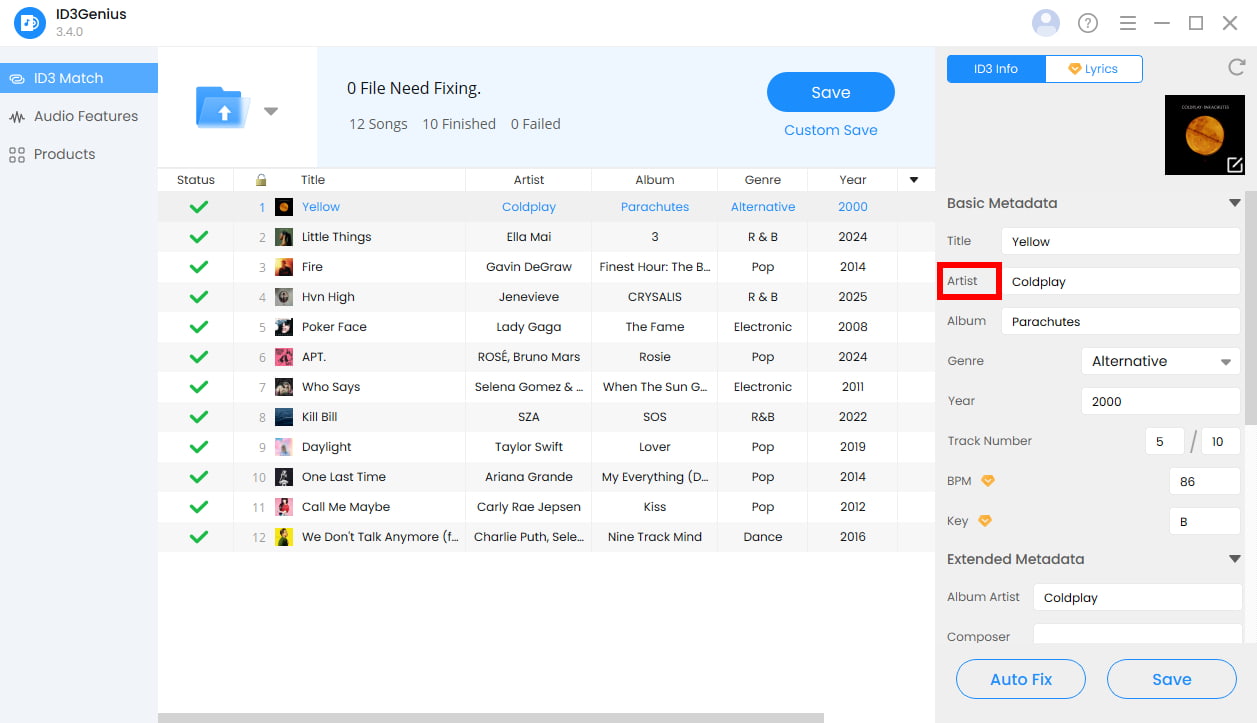
Porady: Looking for lyrics? Udaj się do teksty section, type in the song and artist, and select “Match Lyrics.” You’ll instantly get synced lines that you can refine, copy, or save for later use. Need track analysis? Otwórz Funkcje audio panel to see AI-identified details like BPM, key, Camelot value, and more — perfect for DJs, playlist building, or keeping your music library well-organized.
- Auto-detects and embeds the correct artist name
- Batch-fixes missing or incorrect artist tags with one click
- podpory MP3, WAV, FLAC, M4A, and other common formats
- Pulls accurate artist data from MusicBrainz, Spotify, and Discogs
- Compatible with multiple ID3 versions for broader playback support
- Allows undo actions to restore original metadata anytime
- No dedicated iOS or Android apps available yet
Free & Manual Tool – Native File Explorer
Windows File Explorer offers a simple way to add artist to MP3 file by editing basic tags such as artist, album, and genre directly, without installing any extra software. It’s useful for quick fixes when you only need to adjust a few essential metadata fields.
How to add artist to MP3 filet in Windows File Explorer?
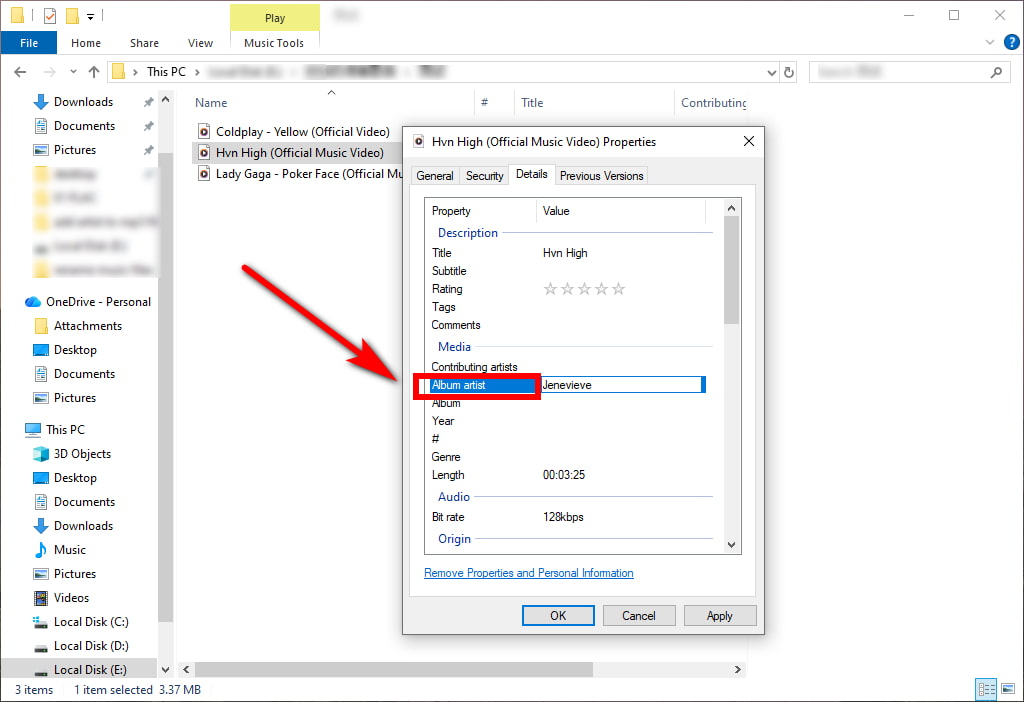
- Kliknij prawym przyciskiem myszy MP3 file you want to add artist to. Select Właściwościi kliknij Szczegóły.
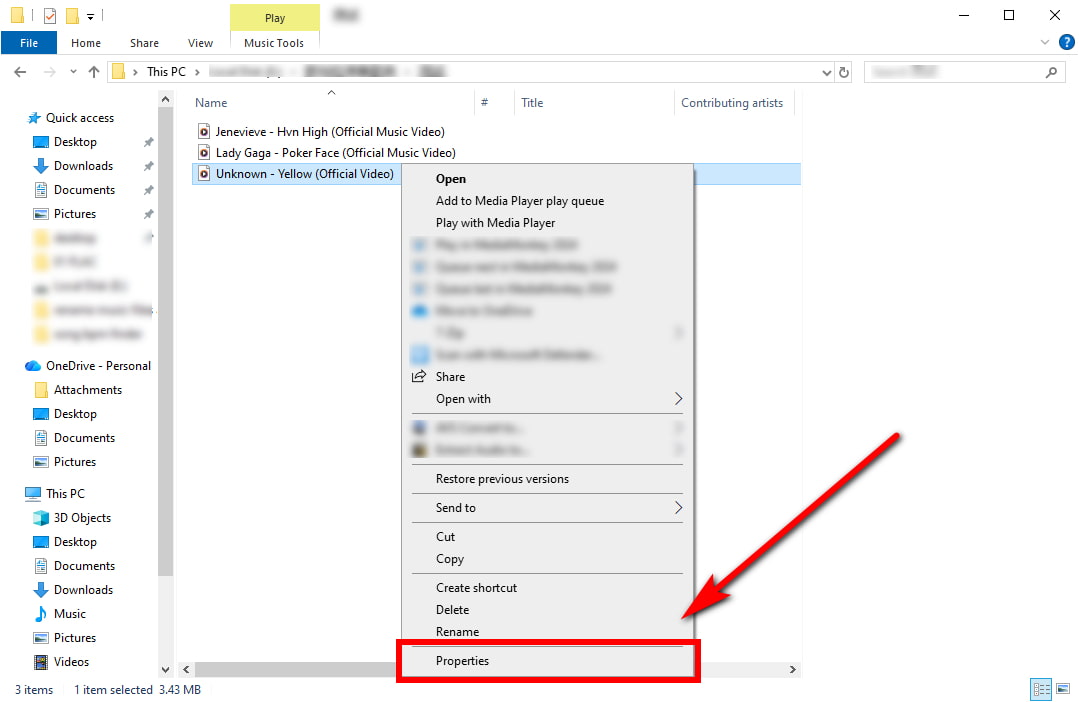
- W Artysta field, you can edit or add artist name to MP3 file. Once done, click Aplikuj , a następnie OK.
- podpory MP3, M4A, WAV, FLAC, and more
- Built-in, easy-to-access tool for quick edits
- Nie jest idealny do zarządzania dużymi bibliotekami muzycznymi
- Limited access to advanced ID3 tag fields
- No online database matching for automatic tag correction
Add Artist Name to MP3 File on Mac
Bulk Audio Metadata Editor – ID3Genius

Managing artist names on Mac becomes incredibly simple with the ID3Genius MP3 edytor metadanych. Instead of manually fixing inconsistent tags, this smart tool scans your tracks and automatically inserts accurate artist information along with titles, albums, genres, BPM, keys, artwork, and more. It pulls verified data from reputable sources like Spotify, MusicBrainz, and Discogs, ensuring your library stays precise and polished.
Designed for Mac users who manage personal playlists, maintain large music libraries, or prepare tracks for mixing, this MP3 tag editor supports MP3, M4A, FLAC, WAV, and other popular audio formats for smooth and accurate metadata editing.
Bring order to your music library and easily add artist to MP3 files in seconds!
ID3Genius
Automatyczne pobieranie i aktualizowanie metadanych muzycznych
How to add artist to MP3 file on Mac w ID3Genius music metadata editor?
- Prześlij swoje MP3 Utwory: Otwórz MP3 edytor tagów, then drag your audio files into the workspace or select “Add Files.” You can import anything from a single MP3 file to an entire folder thanks to its batch-friendly design.
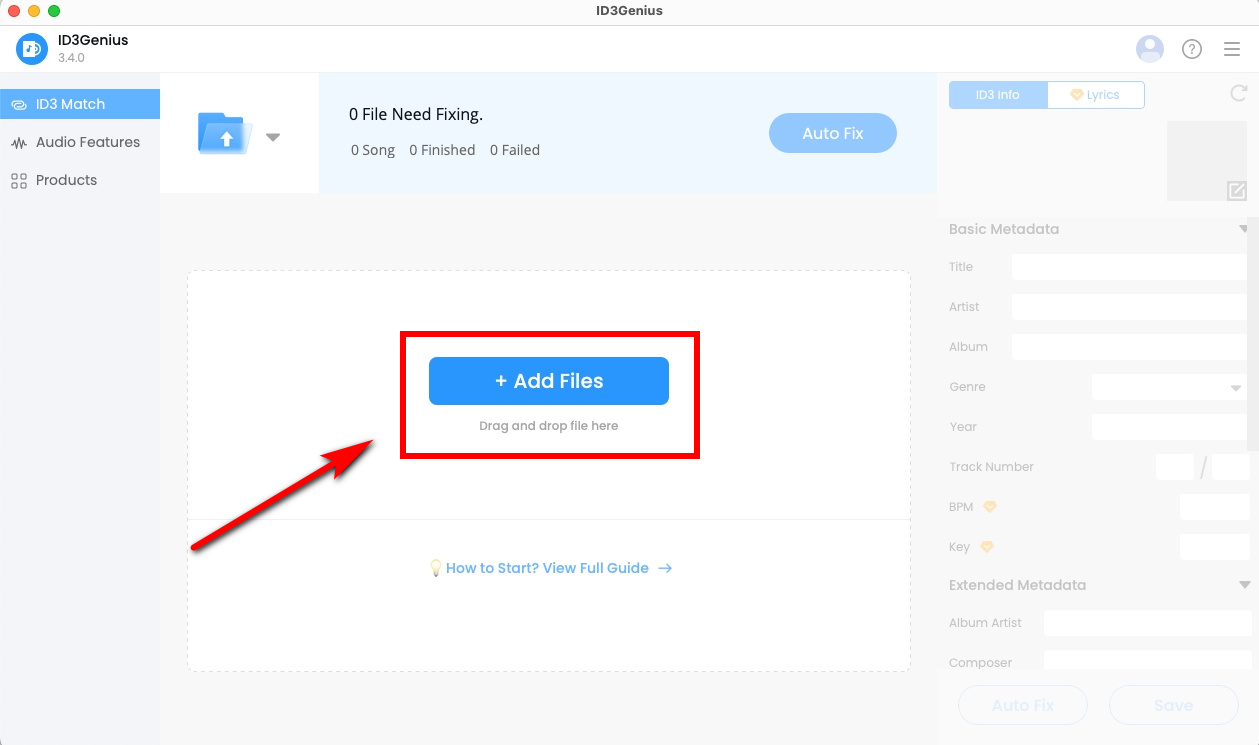
- Automatically Add the Artist Info: Dobranie (Hit) „Naprawa automatyczna” pozwolić MP3 metadata editor inspect each track and gather verified metadata from sources such as MusicBrainz and Spotify. The music tag editor instantly adds artist and album title to MP3 files, and even retrieves artwork.
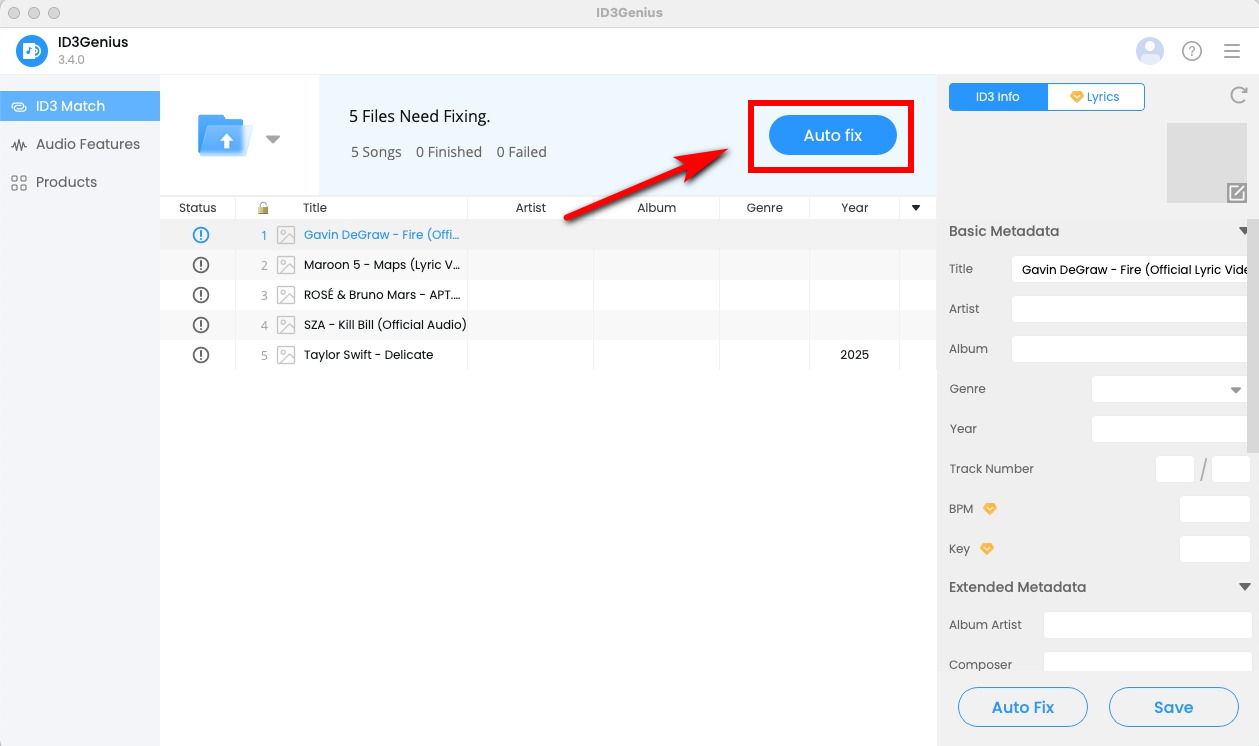
- Finalize and Save Your Tags: When everything looks right, tap "Zapisać." All selected tracks will be updated at once. You can also manually adjust individual tags like artist, song title, genre, year, BPM, key, and more.

- Interfejs przyjazny dla początkujących
- Adds artist names to MP3 files in bulk within seconds
- Fixes missing or inaccurate metadata quickly
- podpory MP3, WAV, FLAC, M4Ai inne formaty audio
- Sources reliable metadata from trusted online databases
- Includes a built-in music player for instant preview
- Currently unavailable for iPhone and Android devices
Built-in Music App – Apple Music
Apple Music is the simplest built-in option for Mac users who need to fix a few MP3 files. You can manually add or change artist names, edit basic metadata, and keep your library tidy.
How to add artist name in MP3 filet using Apple Music?
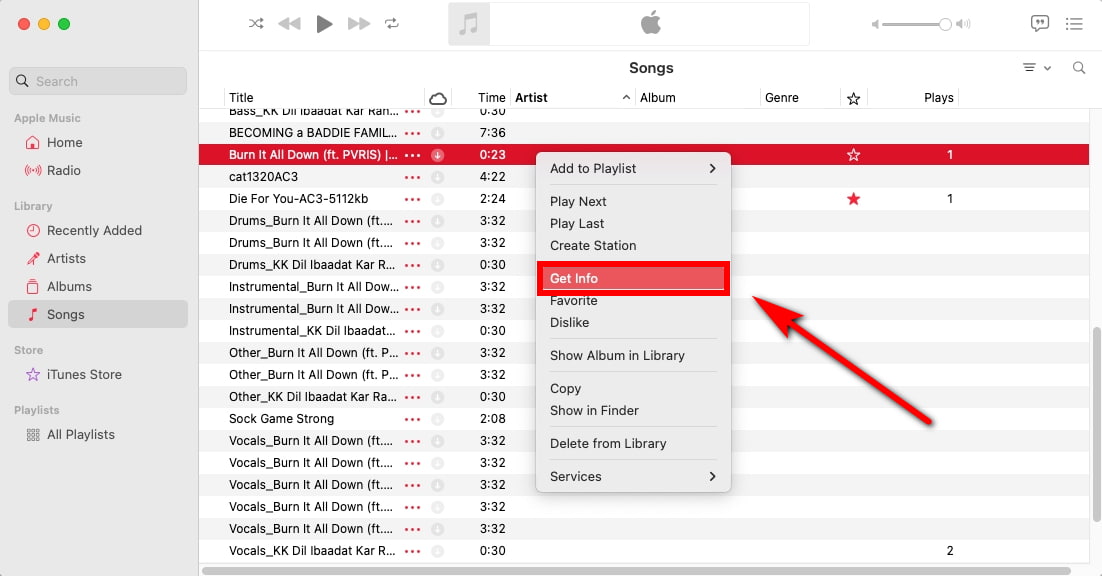
- Open the Apple Music app on your Mac and locate the track you want to update. Right-click the song (or select multiple items) and choose “Get Info.”
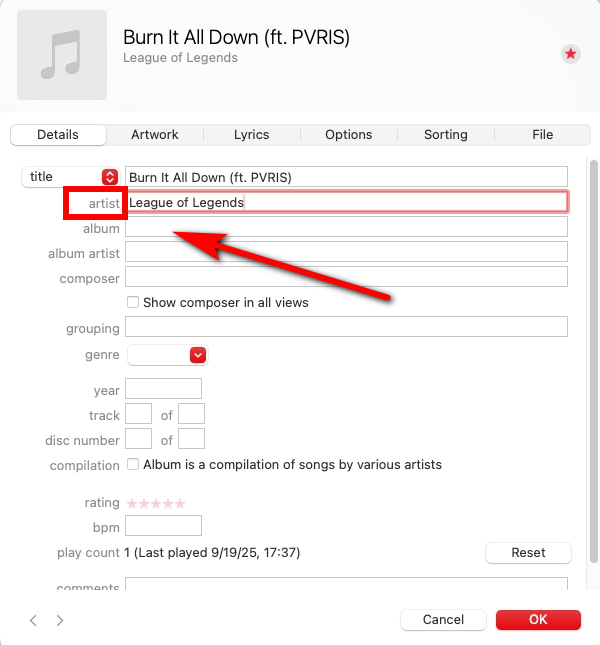
- W Szczegóły kartę, znajdź Artysta field and enter the correct artist name to update the MP3 metadata. After that, click "OK" to save your changes and add artist to MP3 plik.
- Quick and easy access for instant edits
- Ideal for updating a small number of tracks
- Clean, simple, and straightforward interface
- Brak obsługi edycji wsadowej
- Not suitable for large music collections
- Limited to basic tagging features
Add Artist to MP3 File on Your Phone
Android App – Star Music Tag Editor
To add artist to MP3 File on an Android device, Edytor znaczników muzyki gwiazdowej offers a straightforward, efficient solution. You can open any song stored on your phone, edit the artist tag, adjust album info, and customize artwork with just a few taps. Its lightweight design makes it ideal for quick on-the-go metadata fixes without needing desktop software.
How to add artist name to MP3 file on Android using Star Music Tag Editor?
- Open the Star Music Tag Editor app on your Android device and browse your library to select the MP3 file you want to update.

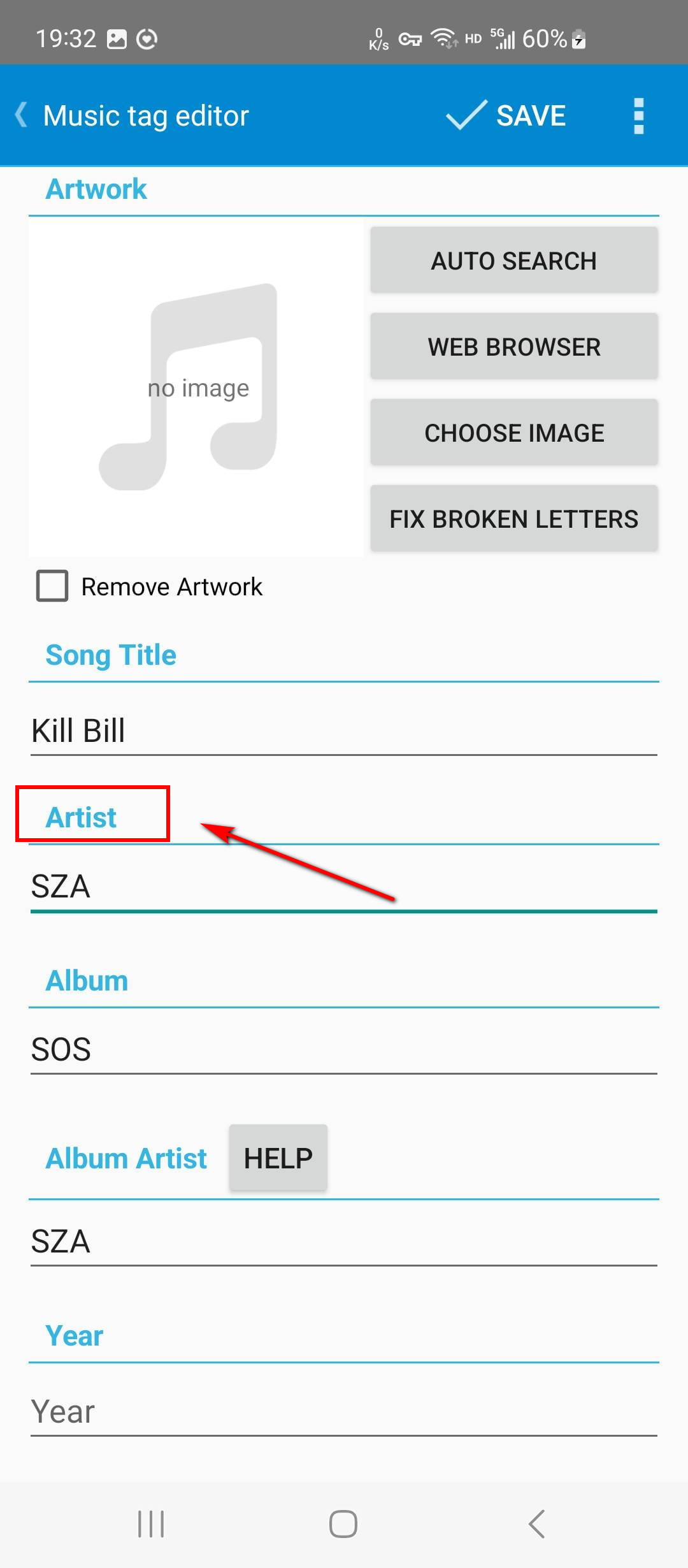
- Stuknij w Artysta field to edit or replace the existing artist name, ensuring the correct metadata is attached to the song. Then, press Zapisz to write the updated artist information directly into the MP3 plik.
- Szybki i łatwy w użyciu
- Suitable for fast, simple tag edits
- Manual editing only
- No support for advanced metadata features
iPhone App – Evertag
Evertag is a lightweight, user-friendly iOS tag editor that lets you quickly edit or add the artist names in MP3 files directly on your iPhone. It supports essential metadata fields, making it convenient for users who want to tidy up audio tags without using a computer. Its clean interface makes basic edits fast and accessible, which is ideal for small on-the-go adjustments.
How to add artist to MP3 file on iPhone with EverTag?
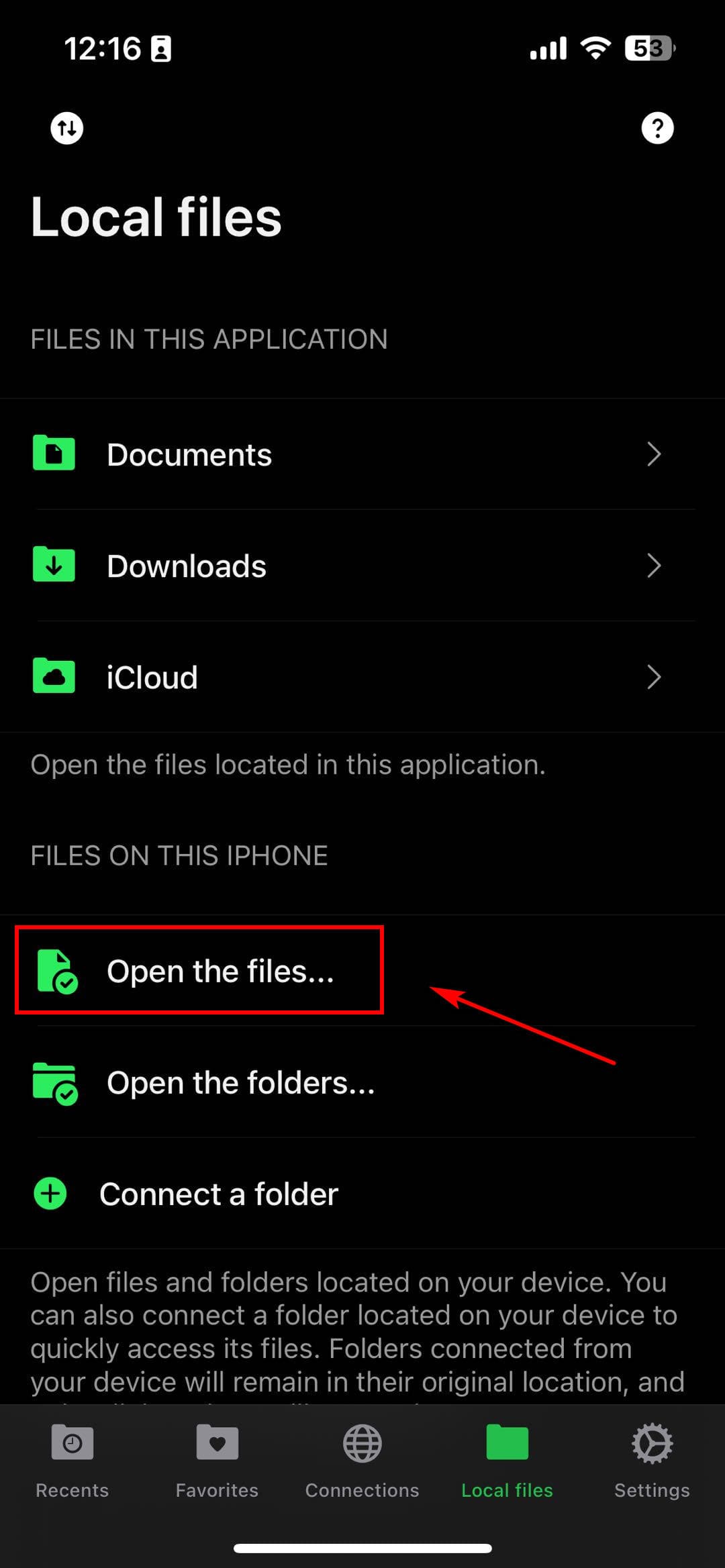
- Open Evertag, hit “Open the files…” aby zaimportować MP3 file you want to edit. Tap “Edit Tags” to access the metadata panel.
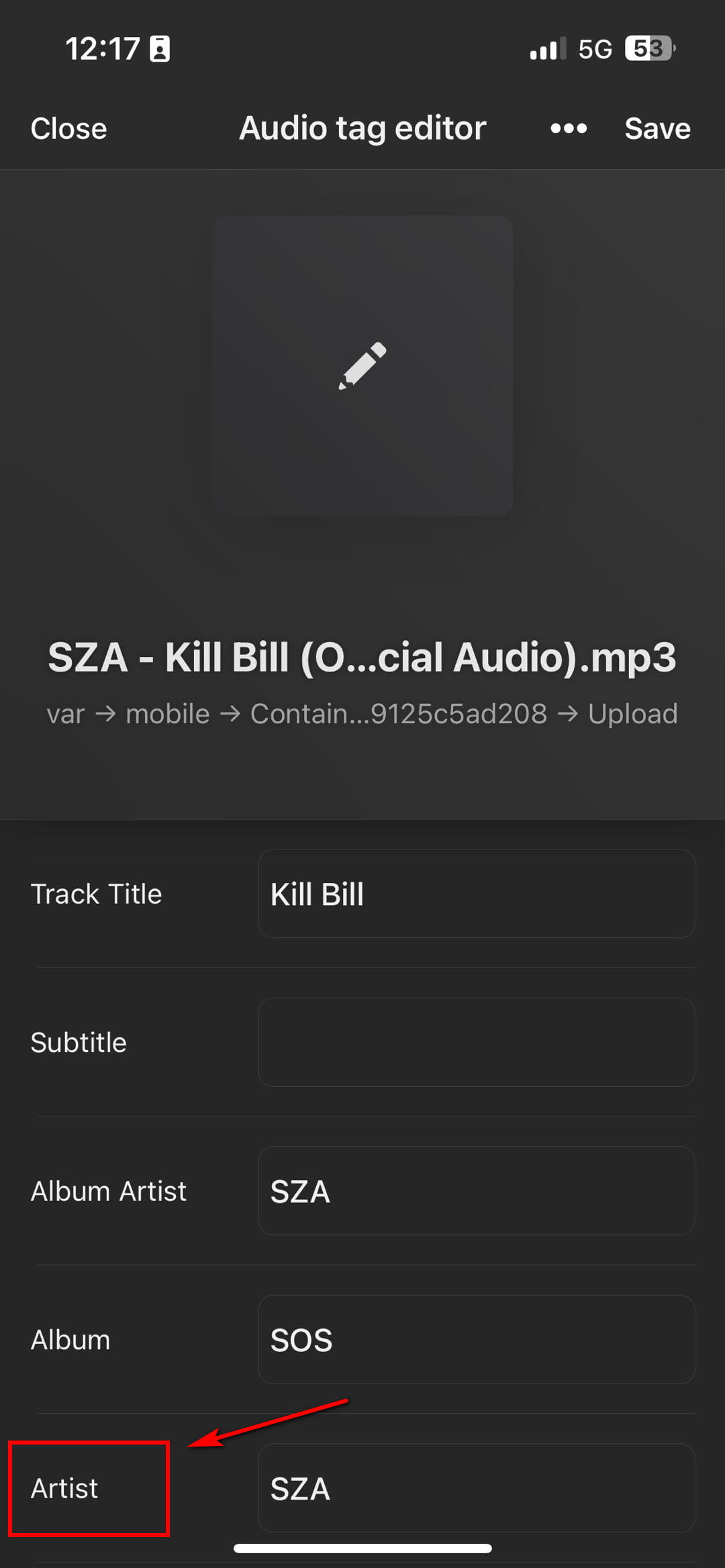
- Zlokalizuj Artysta field and type in the correct artist name. Once complete, tap Zapisz to add artist name to your MP3 plik.
- Simple, clean interface for easy navigation
- Ideal for quick, on-the-go metadata edits
- Lightweight and straightforward for basic tag updates
- No auto-tagging or online database lookup
- Does not support audio recognition
- Limited batch-editing capabilities
- Displays ads during use
Podsumowanie
When you need to add artist to MP3 file, system tools offer quick access, and lightweight manual editors help you fine-tune individual tags as needed. But when your library grows, or you want fast, consistent results without extra effort, an automatyczny MP3 edytor tagów lubić ID3Genius becomes the clear advantage.
ID3Genius MP3 tag editor instantly detects missing artist names, pulls accurate metadata from reliable databases, and updates entire folders in just one click. It removes the hassle of manual edits and keeps your music neatly organized with minimal work.
Próbować ID3Genius today — you’ll experience how easy MP3 tagging can truly be.
ID3Genius
Automatyczne pobieranie i aktualizowanie metadanych muzycznych
FAQs About How to Add Artist to MP3
How do I add an artist in an MP3 plik?
Możesz add artist to MP3 filet plik z ID3Genius tag editor in a few steps:1. Uruchomić ID3Genius i kliknij Dodaj pliki aby zaimportować swoje MP3 plik.2. Select the track to open the metadata panel, then enter the correct artist name or click Automatyczna naprawa to fetch it from online music sources.3. naciśnij Zapisz to write the updated artist tag into your MP3 plik.
How to add artist name to local files on Spotify?
Spotify doesn't allow editing metadata inside the app, but you can update artist tags before importing songs. Use ID3Genius music tag editor to load your audio files, then auto-fix or manually add artist name to MP3 filet. After saving the updated tags, re-import the corrected files into your Spotify Local Files. Spotify will display the new artist information automatically if the metadata is properly embedded.
How to add contributing artist in Windows 10?
You can try the powerful ID3Genius MP3 tag editor to batch-fix or add contributing artists to music files:1. otwarte ID3Genius metadata editor on Windows 10 and import your songs with Dodaj pliki.2. Locate the Contributing Artist field, enter the contributor names or use Automatyczna naprawa to get the correct information in seconds.3. kliknij Zapisz, and the updated contributing artist tag will appear correctly in Windows 10.
Co najlepsze MP3 edytor tagów?
Dla większości użytkowników ID3Genius jest jednym z Najlepiej MP3 edytorzy tagów thanks to its batch editing, Auto Fix tagging via online music databases, and full ID3 field support (artist, album, year, artwork, composer, and more). Its workflow is simple — add files, auto-detect missing tags, adjust manually if needed, and save. It's efficient for organizing large music libraries with accurate metadata.